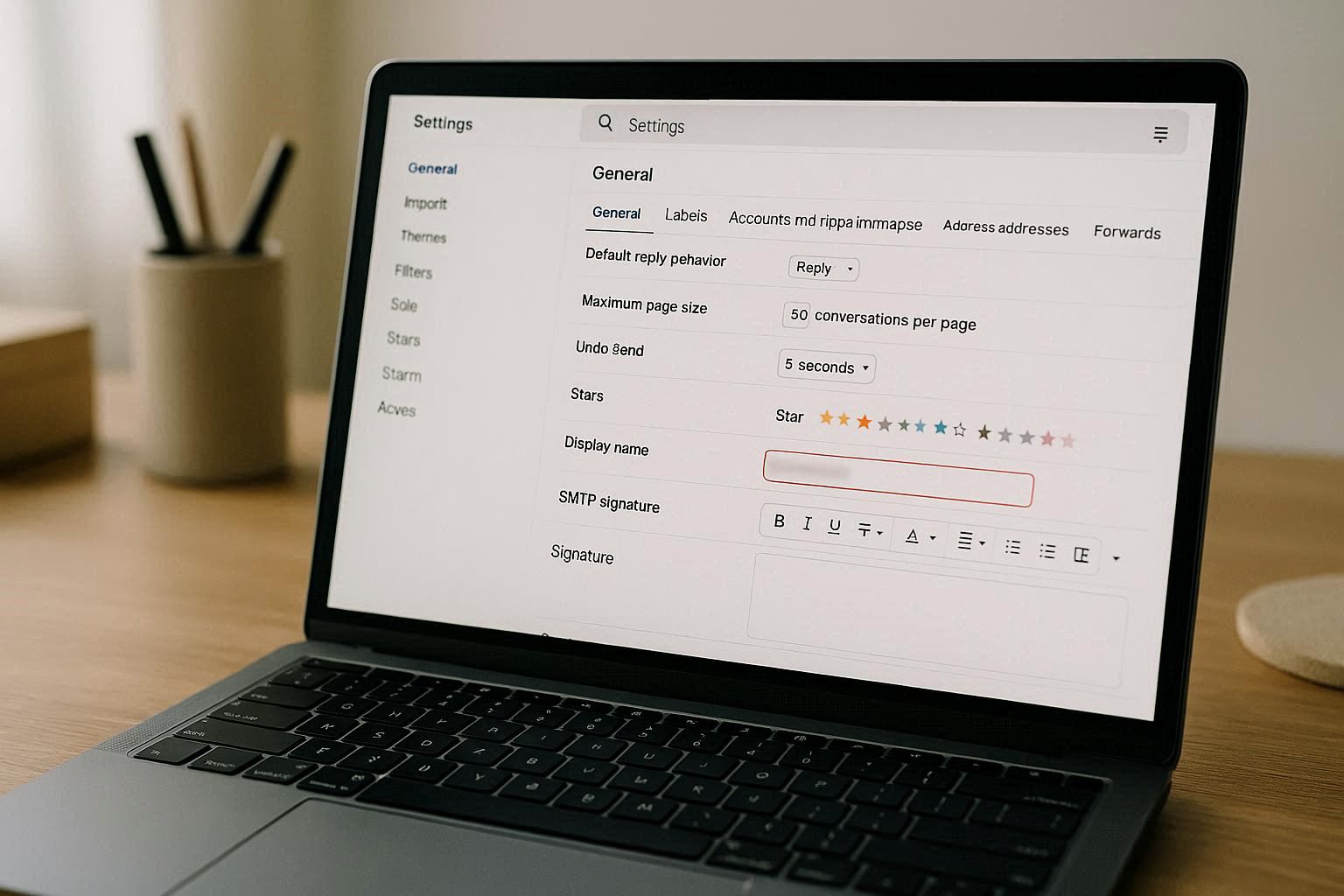
If you want to change the name that appears on your Gmail account without losing any emails, contacts, or attachments, there’s good news: you can. Many Gmail users think changing their address name requires creating a new account, but that’s not true. Gmail lets you edit your display name while keeping your existing data intact.
Here’s how to do it step-by-step, what you should know before you start, and the limitations you might encounter.
What “Gmail Display Name” Means
Your Gmail display name is the name that recipients see when you send an email. It’s not the email address itself — that part (the text before “@gmail.com”) usually cannot be changed without creating a new account.
For example:
-
Email address: [email protected]
-
Display name: John Doe
Changing the display name makes your messages look more professional or updated without affecting your emails, attachments, or settings.
Step-by-Step: How to Change Your Gmail Name
1. Open Gmail Settings
Log in to Gmail on your computer or mobile browser and click the gear icon to open Settings.
2. Go to Your Account Info
Navigate to the section where your profile and personal information are stored. This is usually labeled Accounts and Import or Your Info depending on the interface.
3. Find the “Send Mail As” Section
Look for Send mail as — this is where your display name is stored. There should be an option to edit info next to your current name.
4. Enter the New Name
Type the new display name you want people to see when they receive your email.
5. Save Changes
After entering the new name, save the changes. Gmail will start using the updated name immediately for outgoing messages.
What Changes and What Doesn’t
When you change your Gmail display name:
-
Your emails stay intact
-
Your inbox and sent messages remain untouched
-
Contacts, attachments, and filters stay the same
-
Your Google account remains linked and secure
What does not change:
-
Your actual email address remains the same unless you create a new account.
-
Your Google profile name may or may not update depending on your settings.
This is strictly a display preference and doesn’t affect your account identity or security settings.
Limitations You Should Know
While changing the Gmail display name is easy, there are a few constraints to keep in mind:
You Can’t Change Your Email Address
Gmail does not allow you to change the part before “@gmail.com” without creating a new account. If you need a brand-new address, you’ll have to register it separately and migrate essential data.
Your Name May Sync Across Google Services
If your Gmail is tied to a broader Google account (used for Drive, Photos, YouTube, etc.), the name change may appear elsewhere unless you manage your Google profile separately.
Some Email Clients May Cache the Old Name
Recipients who have saved your contact might still see the old name until they refresh their address book.
Why You Might Want to Change Your Gmail Name
-
You want a more professional appearance
-
Your legal name has changed
-
You’re updating how you brand personal communications
-
You want to fix misspellings or outdated information
Whatever the reason, updating your display name makes your messages clearer and more aligned with how you want to present yourself.